Mercedes Download Manager (DLM)
Download and run the official Mercedes-Benz Download Manager (DLM) to build the USB stick for a COMAND or MBUX navigation map update. Windows requirements, fixes for the common DLM errors, and a Mac or Linux workaround.
The Mercedes Download Manager builds the USB stick your car needs for a manual navigation map update. It runs on Windows only, and you have to run it before the car will ever ask you for a map license key.
What is the Mercedes Download Manager?
The Mercedes Download Manager (DLM) is the desktop app that builds the USB stick for a manual Mercedes navigation update. It downloads the map data from Mercedes servers and writes it to the USB in the folder layout your car reads.
You install DLM, pick your NTG generation and region, and DLM downloads the map and formats the stick. The seven steps below cover a full run.
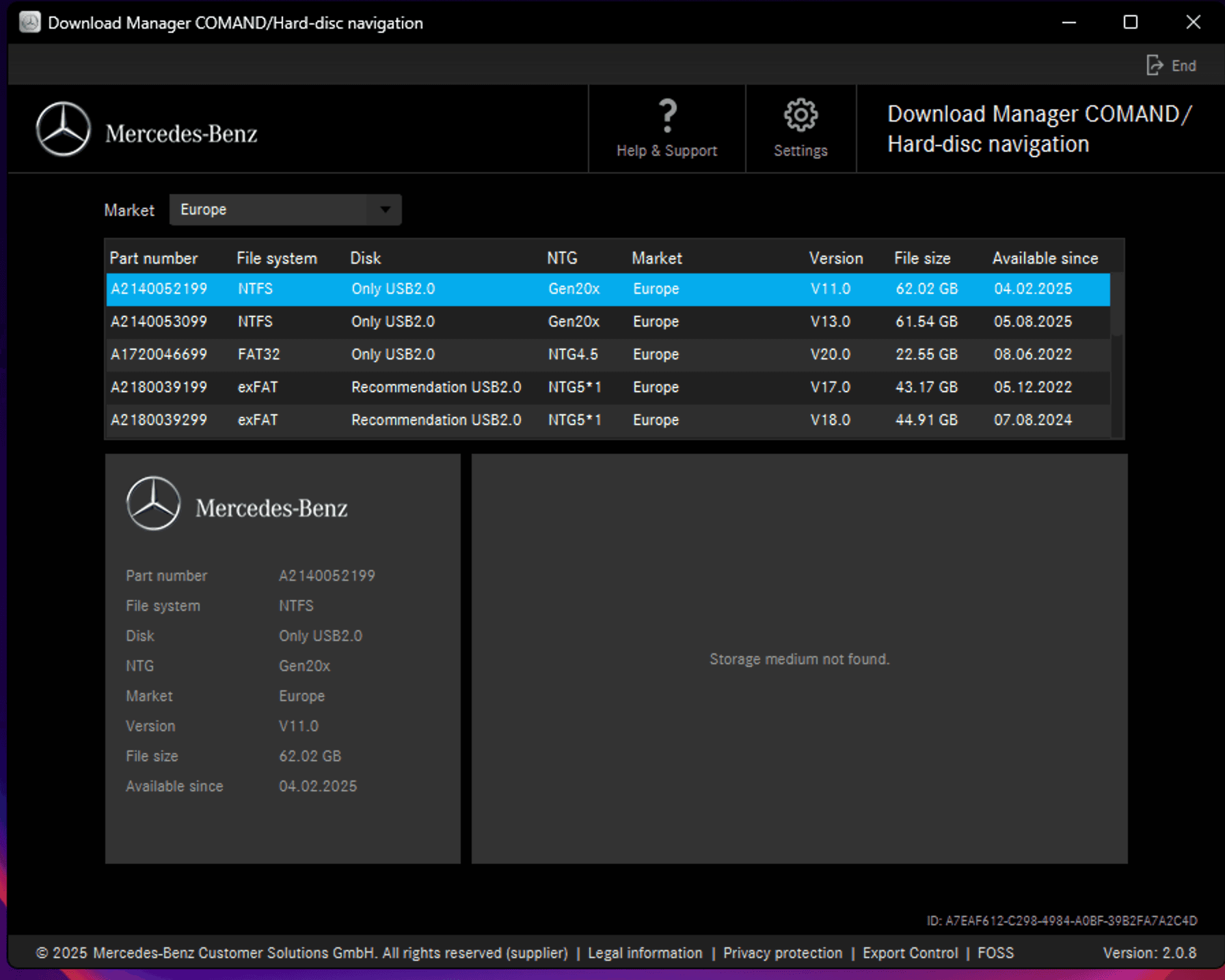
Download Mercedes Download Manager
Mercedes hosts DLM on its customer-solutions domain, and the installer downloads straight from there.
Download Mercedes Download Manager (DLM)
When your car prompts for a Map License Key, enter your VIN to generate a Mercedes-Benz map activation code. Works on every supported NTG generation, NTG3.5 through Gen20x.
Tip: Create the USB first with DLM, then generate the code so you choose the correct version and region.
System requirements
DLM is a Windows-only desktop app, and it needs 64 GB free in two separate places at once.
- Operating system. Windows 10 or Windows 11 (64-bit recommended)
- Computer disk space. At least 64 GB free on the Windows system drive (usually C:). DLM downloads and stages files here before copying them to the USB, and a 64 GB USB does not satisfy that check.
- USB stick. 64 GB or larger for a full-region map on any NTG generation.
- Internet. Stable. Full map data runs 32 GB to 50 GB depending on region and NTG.
Before you open DLM, confirm the USB is large enough and that the Windows system drive has at least 64 GB free.
DLM has no native macOS or Linux version. To run it on either, see Using a Mac or Linux computer below.
Prepare the USB using DLM
Steps 1 to 6 happen on a Windows computer.
- Insert a clean USB stick with enough capacity. DLM tells you the exact size once you pick the update.
- Open DLM and select your NTG generation. The table under Pick your NTG generation maps chassis codes to generations if you aren't sure.
- Pick the region. Europe, North America, China, Japan, Korea, Australia / NZ. Region must match what your car expects.
- Pick the map version. Latest one compatible with your NTG firmware. DLM lists your options.
- Let DLM choose the USB filesystem. Older NTGs use FAT32, newer ones exFAT or NTFS, and DLM applies the right one for the generation you picked.
- Click Download. This takes 20 to 60 minutes depending on map size and internet speed.
- Insert the USB in the car and start the navigation update. Wait for the Map License Key prompt. That's when you generate the code on this site.
Troubleshooting DLM errors
Using a Mac or Linux computer
DLM has no Mac or Linux build, so the workaround is to run Windows in a virtual machine and install DLM inside it.
On macOS:
- Install UTM. It's free and runs on Apple Silicon and Intel.
- Create a Windows 11 VM following the UTM Windows guide.
- Install DLM normally inside Windows.
- When you plug in the USB, click the USB icon in UTM to forward it to the VM. DLM then sees it the way it would on a real Windows PC.
On Linux:
- Use VirtualBox or VMware Workstation Player with a Windows 10/11 guest, then forward the USB.
Compatibility tip. USB forwarding is finicky. If DLM can't see the USB inside the VM, unmount it from the host first, then attach it to the VM via the virtualization tool's USB menu.
DLM tips that save time
- Let DLM format the stick. It picks the filesystem your NTG needs. Only pre-format outside DLM (right-click, Format, exFAT or FAT32) if DLM's own format step fails with a Windows permission error.
- Verify your VIN first. Map size varies by region, and the wrong region means re-downloading the whole thing.
- Check your data card region. It's stamped there, not derived from your country.
- Keep the laptop on charger through the download and the in-car install. Both can run 30 to 90 minutes, and a flat battery corrupts the install.
After the USB is ready
Once DLM finishes and you have the USB, the rest happens in the car.
- Insert the USB in the car.
- Confirm the update version and region on screen.
- When the car asks for the Map License Key, paste the code you generate below.
Generate your map license key
NTG3.5 through NTG5.5 and Aston Martin NTG5*2 codes are generated automatically. NTG6, NTG7, Gen20x, and Aston Martin NTG5.5 are written by hand, so they take 20 minutes to 3 hours on weekdays between 10:00 and 17:00 CEST, and arrive the next working day if you order outside those hours.
Mercedes Map Update Guide
Update your Mercedes navigation maps without the dealer. VIN-based PIN, activation code, and license key generator for COMAND and MBUX, from NTG3.5 to Gen20x.
NTG versions
Every NTG generation MBRetrofit Tools supports, from NTG3.5 to Gen20x, covering Mercedes cars from 2009 to 2025